FR NL EN
FR NL EN
Mobile plans Prepaid Top up Roaming All mobile products
Internet plans Boost your Wi-Fi
Mobile
Mobile plans Prepaid Top up Roaming All mobile products
Internet
Internet plans Boost your Wi-Fi
Private Self-employed

All about your BASE modem

What is a modem?

A modem converts the internet signal into a stable connection in your home. Think of it as the link between the outside world and all your Wi-Fi devices at home. At BASE we chose the CH7465LG-BA modem as our standard device. Here’s a quick explanation.

What is the difference between a modem and a router?

A router distributes your internet connection throughout your home. In many modern devices, such as the BASE modem, the router is already built in. This means you don’t need an additional router with our modem. With BASE, you get a single device that combines both functions, keeping everything simple!

Please note: would you prefer to keep using your own router? For example, because you want parental controls, more detailed network management or multiple VPN options? Then make sure the Wi-Fi signal on your modem is switched off.

What do the LEDs on your modem mean?

First, you should know that the LEDs on your modem switch off automatically. That saves electricity. Do you want to switch the LEDs on? All you have to do is briefly press the WPS button.

The LEDs and buttons are listed below in the same order as they appear on your modem, from top to bottom:

  • Wi-Fi: shows the status of your Wi-Fi.
  • Internet: the internet LED indicates the status of the connection between your modem and the internet.
  • Telephone: not used on this modem.
  • WPS: Wi‑Fi Protected Setup, a way to quickly connect to a Wi‑Fi network without entering a password (please note: the WPS function is not available on the BASE modem, you can still connect your devices using your Wi-Fi name and Wi-Fi password).
  • Power: the white LED shows your power mode. During start-up, the LED first changes from green to red, and then it stays white.

Is the green light blinking? Your modem may be installing a software update. Keep the power cable connected until the update is complete. 

Having trouble with your modem or internet connection? Try these troubleshooting tips.

What ports does your modem have?

At the back of your modem, you’ll find the ports and buttons you need to connect, restart or reset your modem. The ports are listed below in the same order as they appear on your modem, from top to bottom:
  • TEL 1 and 2 (in grey): not used on this modem.
  • INT 1, 2, 3 and 4 (in yellow): 4 Ethernet ports for connection via UTP cable (also called an Ethernet cable). This network cable allows you to connect a device, for example a laptop or a game console, directly to your modem. This usually gives you a more stable connection than Wi-Fi.
  • Reset: button to reset your modem to factory settings. Press and hold it for 15 seconds with a pointed object.
  • Cable connector: connection for the distribution cable from the wall socket or NIU (small device where the distribution cable enters your home and is distributed to your BASE modem).
  • Power connector: connection for the power cable.
  • Power switch: to switch the mains power on and off.

More practical information

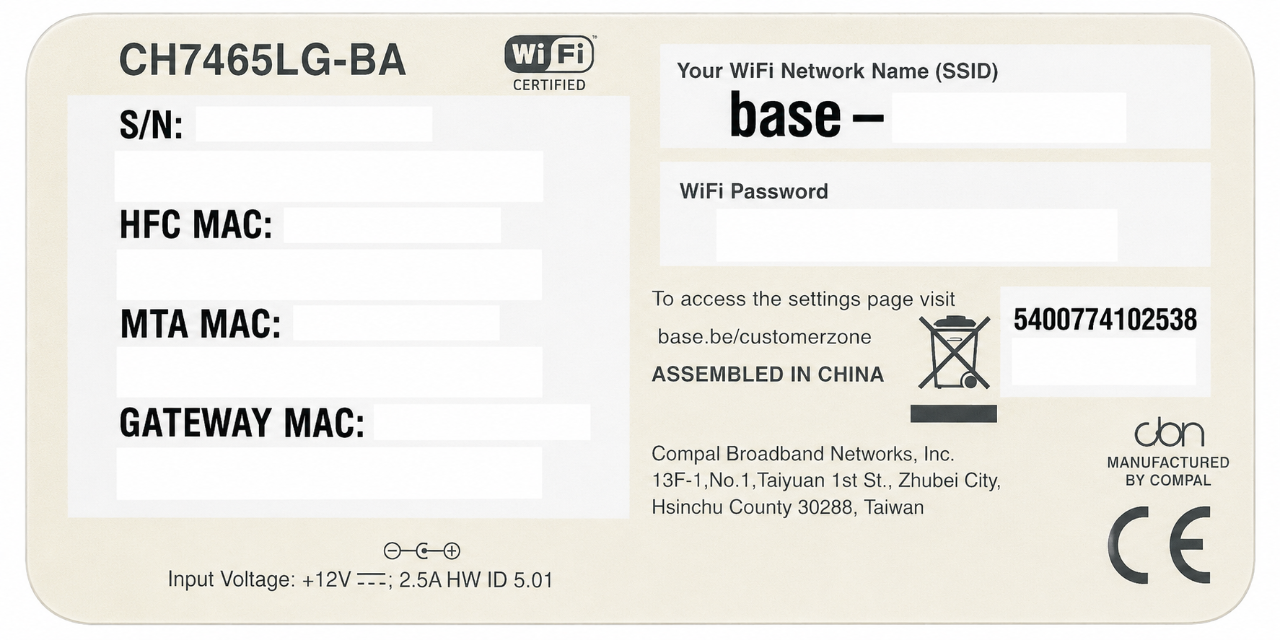
Your modem has a sticker with useful information, such as your Wi-Fi name and password, your modem serial number and MAC address. Our customer service may ask for some of these details if you contact us.

You can usually find this sticker on the bottom or back of your modem. The serial number is usually shown as S/N. The MAC address of your modem is usually shown as HFC MAC. You can also find your MAC address on My BASE under Your home network > Modem.
Place your modem upright in an open space, away from thick walls, metal objects or other electronic devices. This helps your Wi-Fi signal travel better through your home. If your Wi-Fi still feels slow, you can also test and improve your internet speed.

Want to place your modem on a wall? This modem does not come with a wall mount. If you use a separate one, make sure your modem stays stable, upright and well ventilated.

No. BASE provides one standard modem per internet subscription. This means you can’t choose, upgrade or downgrade the modem provided by BASE, and an extra BASE modem isn't available either.

We also don’t offer a modem without Wi-Fi or a different router-modem model for advanced network setups, such as public IP passthrough.

Do you want to use your own modem instead? You can do this with a compatible modem that meets our conditions. Read more about using your own modem.

Some smart devices, such as robot vacuum cleaners, cameras or smart lights, only work with Wi-Fi 2.4 GHz. Your BASE modem supports both 2.4 GHz and 5 GHz Wi-Fi. In most cases, your device will automatically connect to the right frequency band.

Having trouble connecting a smart device? Stay close to your modem during installation and follow the steps in the app of your device.

If your device still can’t connect, it may need a separate 2.4 GHz Wi-Fi network. This requires an advanced Wi-Fi setting and can affect how your other devices connect to Wi-Fi. If needed, contact our customer service for help.

  • EuroDOCSIS 3.0 modem: the technology your modem uses to connect to the internet through the distribution network
  • 4 Ethernet connections: ports to connect devices with a network cable
  • 2 RJ11 telephone connections: ports for fixed-line telephone devices (not used on this device)
  • Support for 2.4 and 5 GHz frequency bands: 2.4 GHz reaches further, while 5 GHz is usually faster at shorter distance.
  • Support for IPv4 and IPv6: internet protocols that allow devices to connect and communicate online
  • 802.11ac Wi-Fi standard (Wi-Fi 5): a Wi-Fi generation supported by your modem
  • Download speed up to 200 Mbit/s 
  • Rated power consumption: 9.5 W

Searching for something else?